
The journal
Does Excel have a CRM? A practical guide for small teams
Clear guidance on whether Excel can be the best CRM for small business spreadsheets, with practical build steps, decision checks and small-team templates.

Short answer: Can Excel be used as a CRM?
Quick verdict
Yes, with limits. Microsoft Excel can act as a basic CRM for contact lists, small pipelines and simple tracking, but it is not a full replacement for purpose-built systems when you need concurrent users, automated email logging, or audit trails.
The trade-offs are practical: a spreadsheet CRM is lightweight, low-cost to start and flexible for early process testing, but it becomes risky as more people, larger datasets and repeatable automations are required.
When a spreadsheet CRM makes sense
best CRM for small business spreadsheets
Use a spreadsheet CRM when you are a solo founder, a micro team, or you are validating a sales or support workflow before committing to subscription software. In those cases an Excel contact list and simple pipeline can be the fastest way to record contacts, plan next actions and measure early conversion steps.
Do not use Excel when you need guaranteed concurrency handling, detailed audit trails, or integrated communications across channels. Those are common triggers to move away from a spreadsheet CRM.
Does Excel make a reliable CRM for small businesses?
Excel can act as a basic CRM for small, low-concurrency teams, but it is not a long-term replacement when you need automation, email integration, detailed audit trails or robust multi-user support.
What Excel natively offers for contact and sales management
Core features useful for CRM tasks
Excel includes several native features that map directly to basic CRM needs: structured tables for rows of contacts, filters and sorts to segment lists, data validation to limit field values, conditional formatting to surface priority records, lookup formulas to connect related tables, and simple charts to visualize counts and conversion rates. These capabilities let you build an Excel contact manager that tracks names, emails, company, pipeline stage and next action without extra software.
Workflows built with tables plus lookup formulas can handle common tasks such as showing a contact's company name from a Companies sheet, pulling the current deal stage, or flagging overdue follow ups with conditional formatting. If your team is small and edits are limited, these features are often sufficient for the short term.

Limits you will hit as complexity grows
Excel lacks built-in multi-user conflict handling. When multiple people edit the same file you can get edit conflicts and version confusion. It also does not provide a centralized activity timeline or automatic email logging into contact histories. Automated workflows beyond basic formulas require Power Query, macros or external automation, which add complexity and maintenance cost.
Sharing a spreadsheet increases security and version risk. Even with file-level protection and passworded worksheets, managing permissions across a growing team becomes cumbersome. For teams that need compliance grade audit trails or integrated messaging, a spreadsheet CRM will feel limited fast.
A simple framework to build a maintainable CRM in Excel
Design the data model first
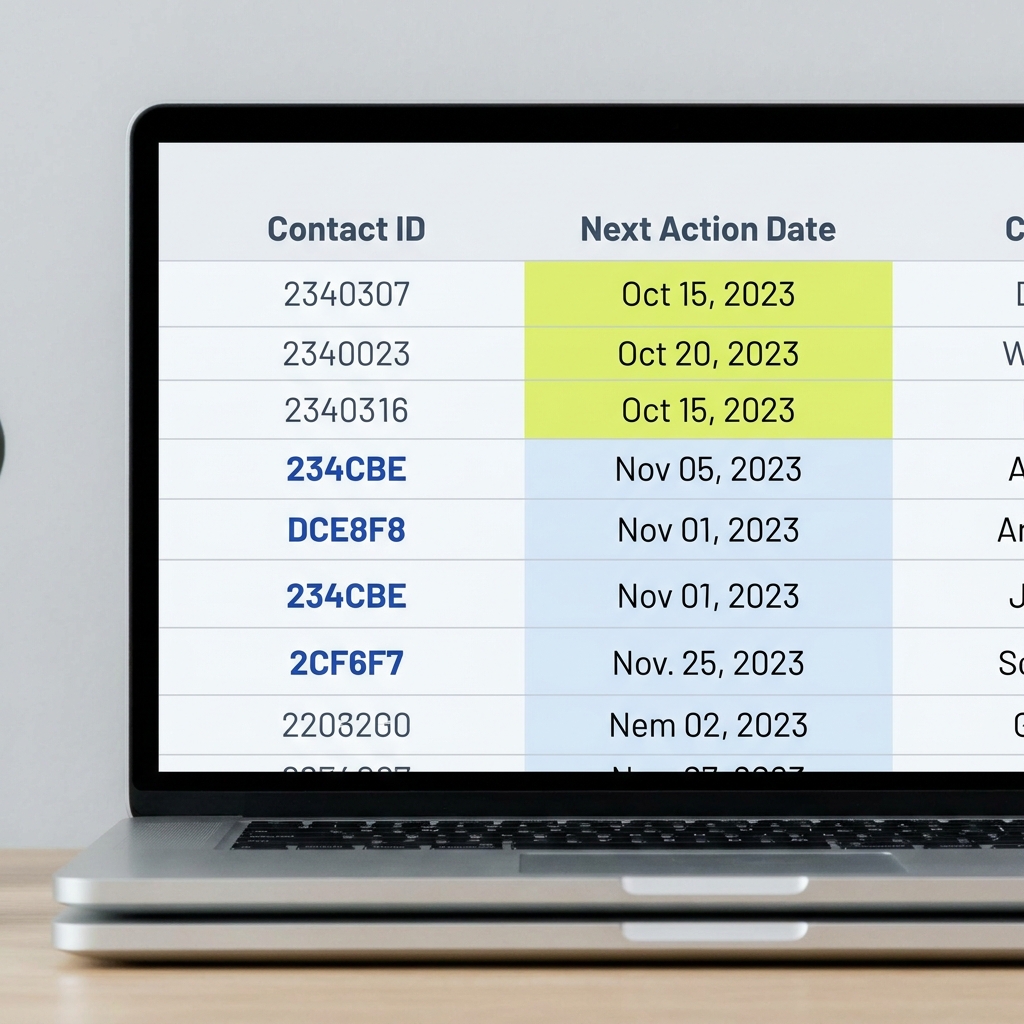
Start by normalizing data. Create separate sheets for Contacts, Companies, Deals, Activities and Products rather than placing everything in one long list. Assign a unique ID column in each sheet early. Unique IDs prevent accidental duplicates and make lookup formulas reliable. Treat the Contacts sheet as the central reference and use IDs to link rows in Deals and Activities.
Plan column types before you enter records. Use plain headers like Contact ID, First Name, Last Name, Email, Company ID, Owner, Stage, Next Action, Next Action Date and Notes. Keep Notes as a short field pointer rather than long unstructured chunks to avoid bloating the file and making deduping harder.
Recommended sheets and columns
Contacts sheet: Contact ID, First Name, Last Name, Email, Phone, Company ID, Owner, Status, Source.
Companies sheet: Company ID, Company Name, Industry, Website, Account Owner.
Deals sheet: Deal ID, Contact ID, Company ID, Value, Currency, Stage, Probability, Close Date, Owner.
Activities sheet: Activity ID, Linked ID (Contact or Deal), Type, Date, Outcome, Notes, Owner.
Products or Services sheet: SKU, Name, Price, Notes.
Basic formulas and light automations
Use lookup formulas such as VLOOKUP or the safer INDEX-MATCH combination to pull related values into views without copying information. For stage calculations and simple rollups, SUMIFS and COUNTIFS are reliable. Avoid volatile functions that recalculate frequently and slow the workbook; volatile formulas can make large files sluggish.
Data validation lists create controlled pick lists for stages, owners and activity types. Conditional formatting rules can highlight hot leads or overdue follow ups. Consider Power Query for repeatable imports and basic merges if you are comfortable; use macros only if you have a clear maintenance plan and version control.
Decision checklist: when to keep using Excel and when to move on
Operational signals that you need a dedicated CRM
Keep using a spreadsheet CRM if your process is simple, edits are mostly single-user, and you do not need integrated email logs or multi-channel histories. Move on when you see frequent edit conflicts, duplicated or lost contacts, or when manual work to maintain the sheet grows faster than it helps the business.
Specific operational signals include needing an activity timeline per contact, wanting automatic email tracking, having more than a few concurrent editors, or needing role-based access and audit logs for compliance. If subscription and onboarding costs are a concern, compare them to your time costs and our internal analysis of subscription and onboarding costs. When you need a full-featured, multi-user system consider a dedicated CRM such as the options in long-form product comparisons like the one from Salesforce (Spreadsheet vs. CRM).
Evaluate automation and integration needs when deciding to migrate
Cost and team considerations
Compare the time spent maintaining spreadsheets against the subscription and onboarding costs of a dedicated CRM. For early-stage teams the spreadsheet CRM often wins on upfront cost. For teams where sales time or compliance risk is at stake, the predictable overhead of a paid CRM can be cheaper when it reduces manual tasks and data errors.
Consider total cost of ownership. A small subscription plus a short onboarding plan may save many hours per week if the spreadsheet demands repeated manual merges, exports or reconciliations.
Common mistakes, maintenance tips and pitfalls to avoid
Data hygiene and version control
Common mistakes include mixing unrelated responsibilities in a single sheet, storing long unstructured notes in cells, skipping unique IDs, and not enforcing a clear edit protocol. These errors make deduping painful and increase the risk of lost records.
Enforce a regular deduping routine and use consistent data validation rules to prevent bad entries. Store long notes externally or keep them in a linked document with a short summary in the cell. Have a named owner for each row so responsibility is clear.
Performance and security tips
Split very large tables into monthly or functional chunks that can be queried with Power Query. Avoid volatile formulas such as INDIRECT, OFFSET and NOW in frequently recalculated workbooks. Where possible, use formulas that operate on defined table ranges rather than whole-column references to reduce recalculation load.
For sharing, use platform features that provide access control and version history. If you are sharing via a cloud file service, agree on an edit protocol: who edits when, and how conflicts are resolved. Schedule regular exports and backups so a recent clean copy is always available. When regulations require audit trails, spreadsheets rarely suffice without additional logging layers.
Practical examples and quick templates for small-team scenarios
Solo owner: contact tracker example
Layout: Contacts sheet with columns Contact ID, Name, Email, Phone, Source, Status, Last Contact Date, Next Action, Next Action Date. Use a simple status pick list such as New, Contacted, Nurture, Qualified. Add conditional formatting to color rows where Next Action Date is today or earlier so follow ups stand out.
Workflow: Add new leads to the Contacts sheet, set Next Action and date, then sort by Next Action Date each morning. Maintain a weekly backup by exporting the sheet to CSV so you can roll back if needed.
Two-person sales pipeline example
Layout: Deals sheet with Deal ID, Contact ID, Company, Deal Value, Stage, Owner, Next Action, Next Action Date, Probability. Keep a separate Contacts sheet to avoid duplication. Owners filter the Deals sheet to their rows using a simple filter or a pivot summary. Use data validation for Stage to keep stage names consistent across owners.
Workflow: Each salesperson updates Next Action and Next Action Date when they finish work for the day. Use a shared morning review where both owners open the file in read-only mode and mark tasks to be worked on. If concurrent edits become frequent, schedule short edit windows or migrate to a tool that supports simultaneous editing safely.
Support log example
Layout: Activities sheet with Activity ID, Contact ID, Issue Summary, Status, Created Date, Owner, Next Action, Resolution Date. Use simple status values such as Open, In Progress, Waiting, Resolved. Keep resolution notes brief and timestamped.
Workflow: Triage new issues daily, assign ownership, and update Status and Next Action Date. Export the log weekly for a backup and to create a brief report on time to resolution and recurring issues.
Wrapping up practical guidance

Excel can be the best CRM for small business spreadsheets in many early-stage scenarios because it is flexible and low cost. Use it to validate processes, track simple pipelines and keep a small, disciplined contact list. Build a normalized model with separate tables, unique IDs and controlled pick lists to reduce risk.
Watch for operational signals that justify a move to dedicated software: repeated edit conflicts, need for integrated email logging, or regulatory audit requirements. When those triggers appear, plan the migration rather than stretching the spreadsheet beyond its intended role.
Frequently asked questions
Can Excel track emails and call logs like a CRM?
Not automatically. Excel can store email and call notes entered manually, but it does not natively capture sent or received messages or attach them to contact timelines without external automation.
How many users is safe for a shared spreadsheet CRM?
There is no fixed number, but when concurrent edits become frequent and cause conflicts, it is time to consider a dedicated CRM that supports simultaneous users and role-level access.
Is a spreadsheet CRM secure enough for regulated data?
Spreadsheets are rarely sufficient for regulated data without additional controls. If you need audit trails, encryption, and strict access logs, a purpose-built system is usually required.
If you start with Excel, keep the model simple and plan for transition points. Use unique IDs, enforce data validation and keep regular backups so the spreadsheet remains reliable while you validate processes. When the signs show that manual maintenance is costing time or risking data quality, evaluate purpose-built tools and a migration plan rather than stretching the spreadsheet further.
References
- https://www.nimble.com/blog/crm-vs-spreadsheets/
- https://stackandmethod.com/guides/workflow-automation/
- https://stackandmethod.com/software/n8n/
- https://www.efficy.com/choose-crm-or-excel/
- https://n8n.io/pricing/
- https://stackandmethod.com/guides/software-costs/
- https://www.salesforce.com/blog/small-business/spreadsheet-vs-crm/
- https://media.stackandmethod.com/brand/wordmark-0d20412686.svg
From another publication
Before moving customer records into a new system, plan how to clean the data. What is CRM data hygiene? A practical guide (Orvus)