
The journal
Can Google Sheets be a CRM? A practical guide for small teams
best CRM for small business spreadsheets: practical guide to using Google Sheets as a lightweight CRM, with design, automation and migration advice.
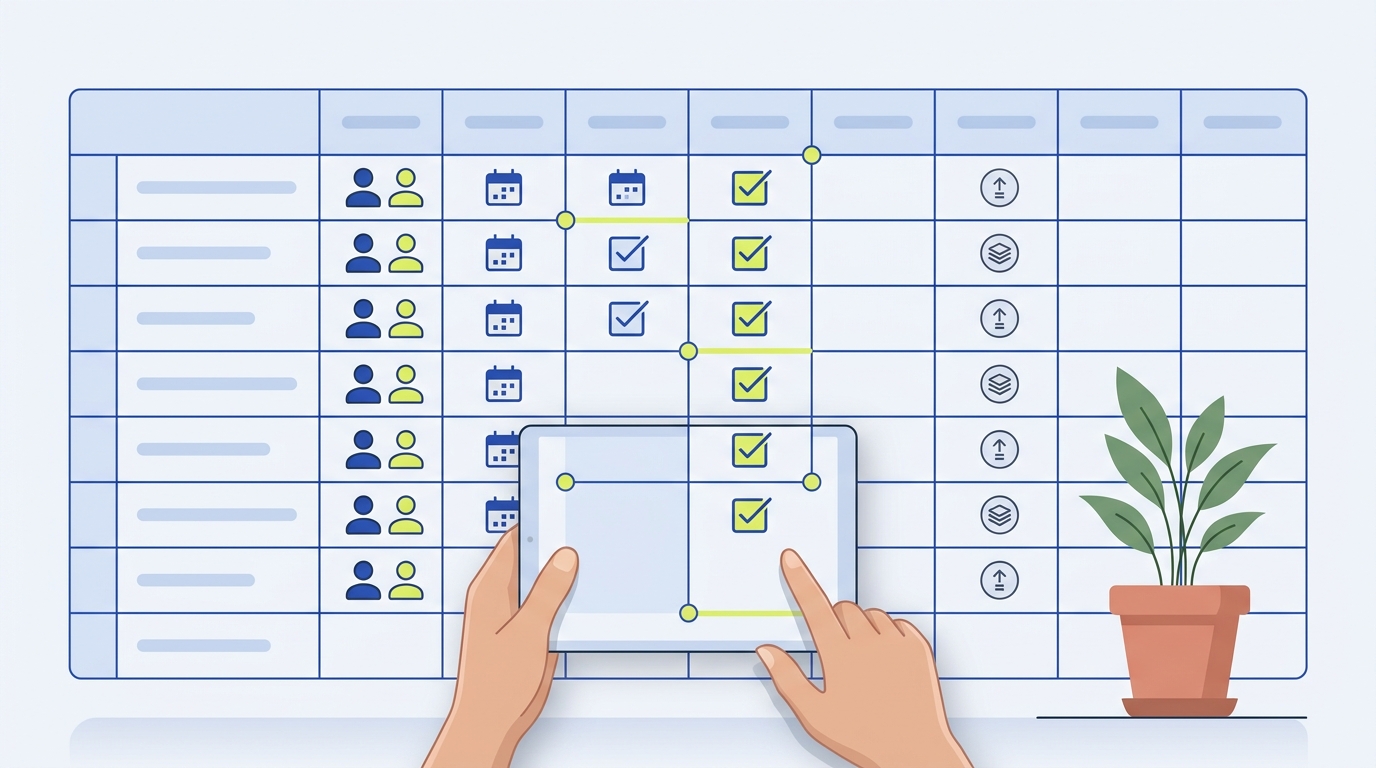
Can a spreadsheet be your CRM? Definition, limits and when it makes sense, best CRM for small business spreadsheets
A CRM for this guide means a lightweight system to store contact data, record activities and track a simple sales or project pipeline for a small team. It does not include heavy marketing automation, enterprise user management, or built-in telephony. The emphasis is on practical, file-based workflows that a tiny team can build and operate without buying new core software.
The short answer is yes, Google Sheets can be the best CRM for small business spreadsheets when your needs are simple, you have a modest record count, and users accept spreadsheet-style sharing. A key hard limit to keep in mind is the spreadsheet cell cap. Google raised Sheets to a maximum of 10 million cells per file, and that limit is the clearest technical boundary for scale and complexity 10 million cells announcement. For a deeper primer on options, see our best CRM for small business spreadsheets guide.
Use Google Forms to capture inbound leads directly into a designated worksheet, which removes manual copy and paste and makes early lead capture reliable for low volumes Google Forms response destination.
Can Google Sheets reliably function as a CRM for a small business?
Google Sheets can function as a lightweight CRM for very small teams with simple pipelines and modest automation, but the 10 million cell limit, Apps Script quotas and the lack of native row-level permissions mean it is not a reliable long-term replacement for purpose-built CRM systems once volume or governance needs grow.
When Sheets works well: single-location sales, a solo consultant or a micro team using a simple pipeline of stages, low update frequency, and a small number of calculated columns. These scenarios let you benefit from Sheets collaboration, flexible views and cheap setup. When it does not work: thousands of records with many calculated fields, frequent edits that trigger scripts, or requirements for row-level role restrictions. Those needs expose the cell and permissions limits in a way that breaks the spreadsheet approach Protect sheets and ranges documentation.

The core idea is one primary key per record, one row per contact, and normalized worksheets for related data. Use a master contacts worksheet with a stable ID column, and separate worksheets for companies, activities and pipeline events so you do not blow past the cell budget quickly. Keeping data normalized reduces repeated columns and helps later migration.
Designing the right data model and sheet architecture for a CRM
Plan columns deliberately. If you expect calculations for scoring, next action or derived dates, place those calculations in a limited set of columns or in a separate computed sheet that pulls only visible IDs to reduce formula churn. Heavy use of volatile formulas and wide denormalized rows consumes cells and slows Sheets as you approach limits, so prefer lookups by ID and restrained use of ARRAYFORMULA or similar constructs; aggressive formulas are a common source of performance problems tied to the cell cap 10 million cells announcement.
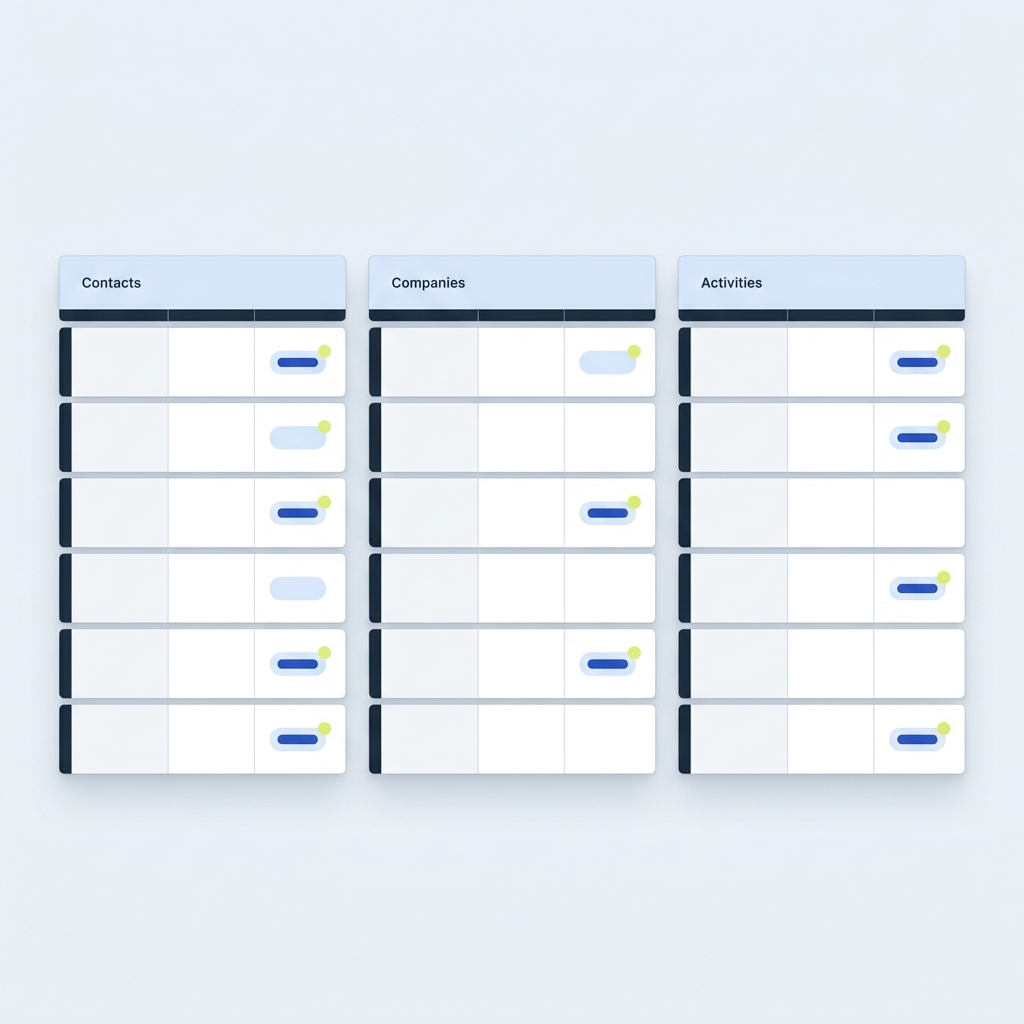
Budgeting rows roughly, using the 10 million cell boundary: if Contacts will have 40 columns, you could plan for about 250,000 rows before reaching 10 million cells, but additional sheets and computed columns reduce that number quickly. Keep a write-only raw responses sheet for incoming form submissions, then run a regular clean and sync into the master sheet to keep the canonical view tidy.
Practical setup tip: connect your Google Form to a dedicated 'raw leads' worksheet, then build a cleaned 'master' worksheet that uses row IDs and controlled lookups to present the operative CRM view for users. This keeps write traffic isolated and makes it easier to validate inputs before they become part of the canonical dataset Google Forms response destination.
Automations, triggers and integrations: making Sheets behave like a CRM
Automation options fall into two pragmatic buckets. For lightweight, low frequency workflows use Apps Script and built-in triggers. For more complex integrations, use a no-code automation platform to move rows, deliver notifications or create calendar events. Apps Script is powerful for many tasks but has documented daily and execution limits you must plan around to avoid silent failures Apps Script quotas page. For background on Apps Script triggers, see this triggers guide.
When to prefer Apps Script: small teams with predictable, batched workflows and someone willing to maintain a few scripts. When to prefer a third-party automation platform: you need reliable webhooks, multiple app connectors, or you want less code maintenance. Third-party platforms can bridge common CRM needs such as sending emails, creating tasks and syncing calendar events, but they add an external dependency and potentially per-action costs Zapier guide to building a CRM in Sheets. For a broader comparison of add-ons and platforms, see this ultimate guide.
Practical automations that work well with Sheets are form-to-sheet capture, a nightly batch job that consolidates rows and recalculates scores, and a daily summary email of new leads. Avoid row-by-row real-time scripts that run on every edit; instead batch changes and process them on a timed trigger to stay within Apps Script quotas Apps Script quotas page. See a practical note on email notification limits here.
Decide whether to use Apps Script or a third-party automation platform
Testing and monitoring guidance: log script executions to a monitoring sheet, set a simple alert for failed runs, and track daily execution counts so you do not inadvertently hit quota limits. If a workflow must be near real-time at scale, plan to use an external automation layer that handles retries and error reporting.
Permissions, governance and mobile capture: security trade-offs
Sheets protects at the file, sheet and range level, but it does not provide native CRM-style record ownership or row-level role controls. That means you cannot reliably restrict a user to only edit rows they own without building a more complex app layer or creating many filtered copies, which increases maintenance overhead Protect sheets and ranges documentation.
Common governance risks include accidental edits by users with edit rights, shared links that escape the intended audience, and limited audit trails compared with purpose-built CRMs. Mitigations include strict sharing settings, locked edit sheets, and keeping a single admin account to approve imports and destructive changes.
For mobile capture and role-based UI, AppSheet can sit on top of a Google Sheet and provide forms, offline capture and an app-like experience, while keeping the Sheet as the backend. AppSheet introduces governance and cost trade-offs to consider before moving forward, so weigh those factors against the need for mobile data entry and offline access AppSheet build apps guide.
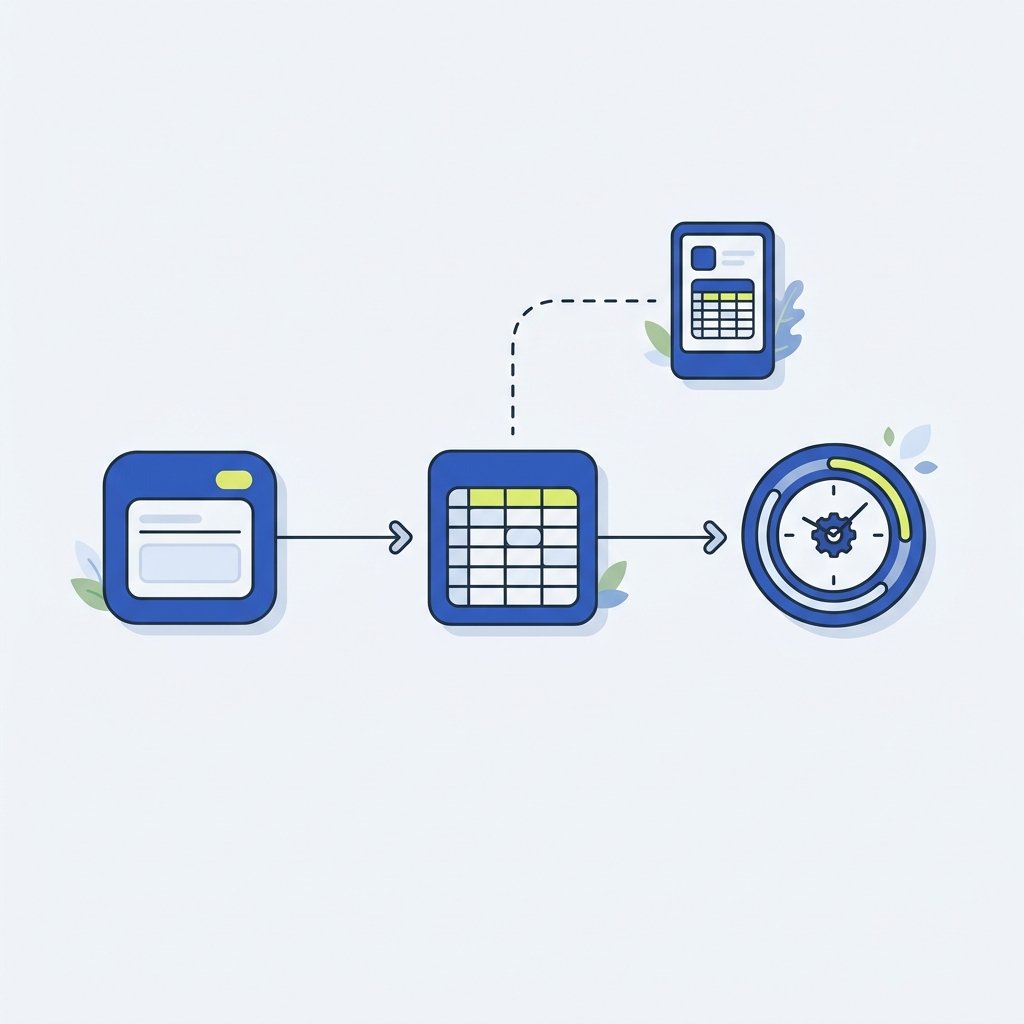
Backups and version control are simple but essential: schedule exports of the master sheet, keep dated snapshots, and test restores. A regular snapshot cadence and an export copy for audits reduce the risk of accidental data loss and make migration easier if you outgrow the spreadsheet.
Typical pitfalls, scaling signals and when to migrate from Sheets
Common mistakes that lead to trouble include overusing volatile formulas and ARRAYFORMULA across many rows, storing everything in one huge master sheet, assuming row-level permissions exist, and running frequent triggers that hit Apps Script quotas. These practices accelerate hitting cell or quota limits 10 million cells announcement.
Concrete scaling signals to watch for: repeated script failures with quota errors, slow page loads when opening the file, hitting the cell limit warning, and business needs for role-based access that cannot be satisfied by range protections. When these signals appear, plan a migration rather than a band-aid.
Migration steps, short checklist: snapshot the canonical sheet, freeze writes to the master for a brief cutover window, map your sheet columns to the target schema, and run a pilot import for a subset of records to validate IDs and relational integrity. Use a staged sync or a migration automation to keep the new system in sync during transition, then flip writes to the new canonical destination once validated Zapier migration and template guidance. For tool choices, see our software directory.
Note on costs and governance: moving to an app layer or a paid tool can improve mobile capture, role control and reliability, but it brings subscription costs and ongoing maintenance. AppSheet is one route to add structured apps on top of Sheets, while third-party automation platforms ease transition tasks AppSheet build apps guide.
Practical examples, a sample workflow and quick checklist to try today
Scenario one, solo consultant: a single Contacts sheet and a Google Form for inbound leads, with a simple master view filtered by status. This is minimal, low cost and reliable if you keep formulas limited and run occasional manual cleanups. Use the form-connected raw responses sheet to protect the master and avoid accidental overwrites Google Forms response destination.
Scenario two, two-person sales team: separate Contacts and Activities worksheets, a primary key for each contact, and range-level protections so only one person edits the owner and pipeline fields. Add a nightly batch script that consolidates new responses and sends a summary email so you do not hit per-edit script limits Apps Script quotas page.
Scenario three, early-stage startup: keep the Sheet as the backend but prototype an AppSheet front end for mobile capture and role-based screens. Test the app with a small pilot and measure the governance and cost implications before committing the product team to maintenance AppSheet build apps guide.
Starter checklist to implement today:
- Define required fields and create a single primary key column
- Connect a Google Form to a write-only raw responses sheet
- Create a cleaned master sheet that pulls validated rows by ID
- Set up one batched Apps Script or a no-code automation for notifications
- Schedule daily backups and a weekly snapshot export
Safety checks before go-live: test the form-to-sheet flow, simulate quota-limited script runs to see failure modes, verify editor and viewer permissions, and export a snapshot to confirm you can restore data. Maintain a short maintenance cadence: prune old unused columns, compress history into archive sheets, and review execution logs periodically to keep the spreadsheet within safe operational limits Apps Script quotas page.
Frequently asked questions
Can Google Sheets handle my sales pipeline?
Yes for simple pipelines with low update volume and few calculated fields, but not for thousands of records or complex role-based access.
Are Apps Script automations reliable for notifications?
Apps Script works for low frequency or batched tasks, but documented quotas can cause failures for high-volume or real-time workflows.
Should I use AppSheet on top of a Sheet?
AppSheet is useful for mobile capture and role-based UI, but it adds governance and maintenance trade-offs to consider.
A sheet-based CRM can be a pragmatic short-term choice for very small teams that keep schemas lean and automation modest. Track the scaling signals described here, automate conservatively, and plan a migration when core limits are reached. If you want a structured starting point, use the starter checklist and run a small pilot before making the Sheet the canonical system of record.
References
- https://workspaceupdates.googleblog.com/2020/09/10-million-cells-google-sheets.html
- https://support.google.com/docs/answer/2917686
- https://support.google.com/docs/answer/1218656
- https://stackandmethod.com/articles/best-crm-for-small-business-spreadsheets-can-excel-work/
- https://developers.google.com/apps-script/guides/services/quotas
- https://bettersheets.co/explained/triggers
- https://zapier.com/blog/spreadsheet-crm/
- https://sheetgurus.com/blog/send-messages-from-google-sheets-2026-ultimate-guide-add-on-vs-apps-script-vs-zapier-vs-appsheet-with-two-way-sms/
- https://medium.com/@python-javascript-php-html-css/set-up-email-notifications-for-updates-to-google-sheets-columns-b7ab597df9ee
- https://cloud.google.com/blog/topics/developers-practitioners/build-apps-google-sheets-data-appsheet
- https://stackandmethod.com/software/
- https://stackandmethod.com/guides/workflow-automation/
From another publication
Before moving customer records into a new system, plan how to clean the data. What is CRM data hygiene? A practical guide (Orvus)