
The journal
How to Test Whether a Notes App Exports Your Attachments
Run a small export trial with a pasted image, nested note and relative link so you can recover the actual files before migrating your notes.

 Stack & Method
At a glance
Export one dummy note with an embedded file and a linked file, then open the result independently.
In this guide
Before moving your notes, export a tiny folder with the same kinds of links and attachments you depend on. Reopen it in a clean copy of the destination. A successful export produces files. A successful round trip also lets you open those files, follow their links and recover the actual attachment bytes without access to the original library.
Build a fixture you can afford to lose
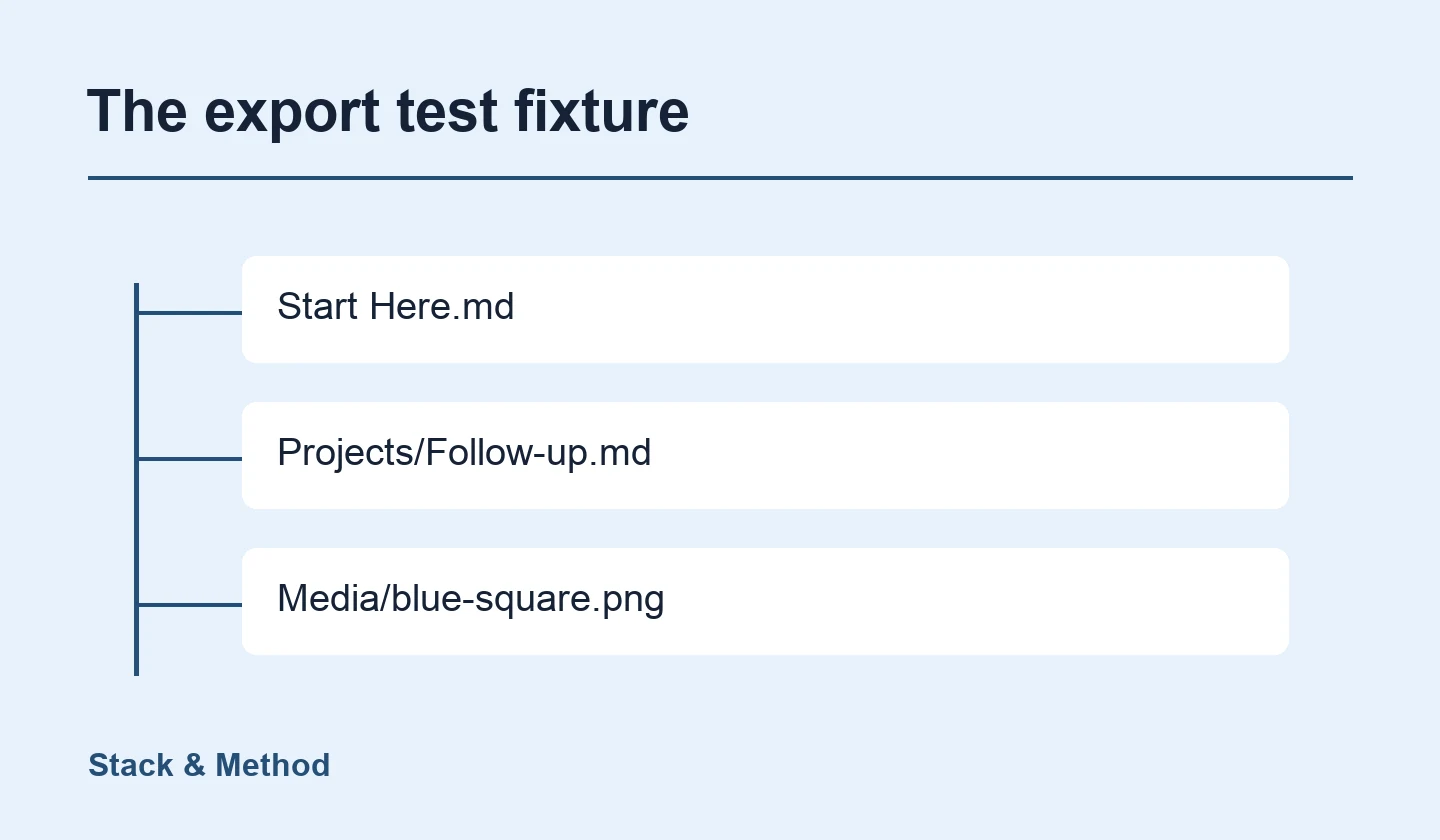
Create a scratch folder called Transfer Test. Put a note called Start Here at the top and a note called Follow-up inside a subfolder named Projects. Add a small image to a Media folder. Use a picture you made for the test, since it may travel through both the old and new apps. Add a relative link from Start Here to Follow-up and an inline reference to the image. Put a phrase such as “blue square, edition two” in the linked note, to make it easy to tell which file opened.
Add one constraint that reflects your real library. If you use reusable note titles, create another Follow-up elsewhere with different text. If your notes depend on screenshots pasted from the clipboard, paste one into the scratch note exactly as you would normally. Pasted and manually linked images can take different paths through the export. Use a clear name for each so you can tell which one breaks.
Identify delivery and content-type issues when an attachment is meant to remain a remote URL. Check response headers for a hosted attachment.
Sources: Obsidian · CommonMark
Save an independent export
Start with the simplest copy your source app offers. For a Markdown export, expand the archive and inspect the tree. A typical fixture might contain Start Here.md, Projects/Follow-up.md and Media/blue-square.png. Paths can legitimately change if the exporter rewrites each link correctly. A flattened folder becomes a problem when two notes end up with the same name or when their destinations stop resolving.
If your app provides only a proprietary archive, write down that limitation. Import it into the supported destination and try opening the actual files from there. You may have a usable migration between those two apps, with no portable backup outside them. Give these two outcomes separate entries in the checklist.
Two files to put in the fixture
Embedded file
The file should travel in the export if that format supports embedded resources. Open it separately and compare it with the input.
Linked file
A path or URL may survive without the underlying file. Record that outcome and keep a separate local copy if the workflow depends on it.
Obsidian documents adding attachments and choosing their location. Check exported files and links in another application before relying on an export. Attachments.
Sources: Obsidian · CommonMark
Reopen without the old library within reach
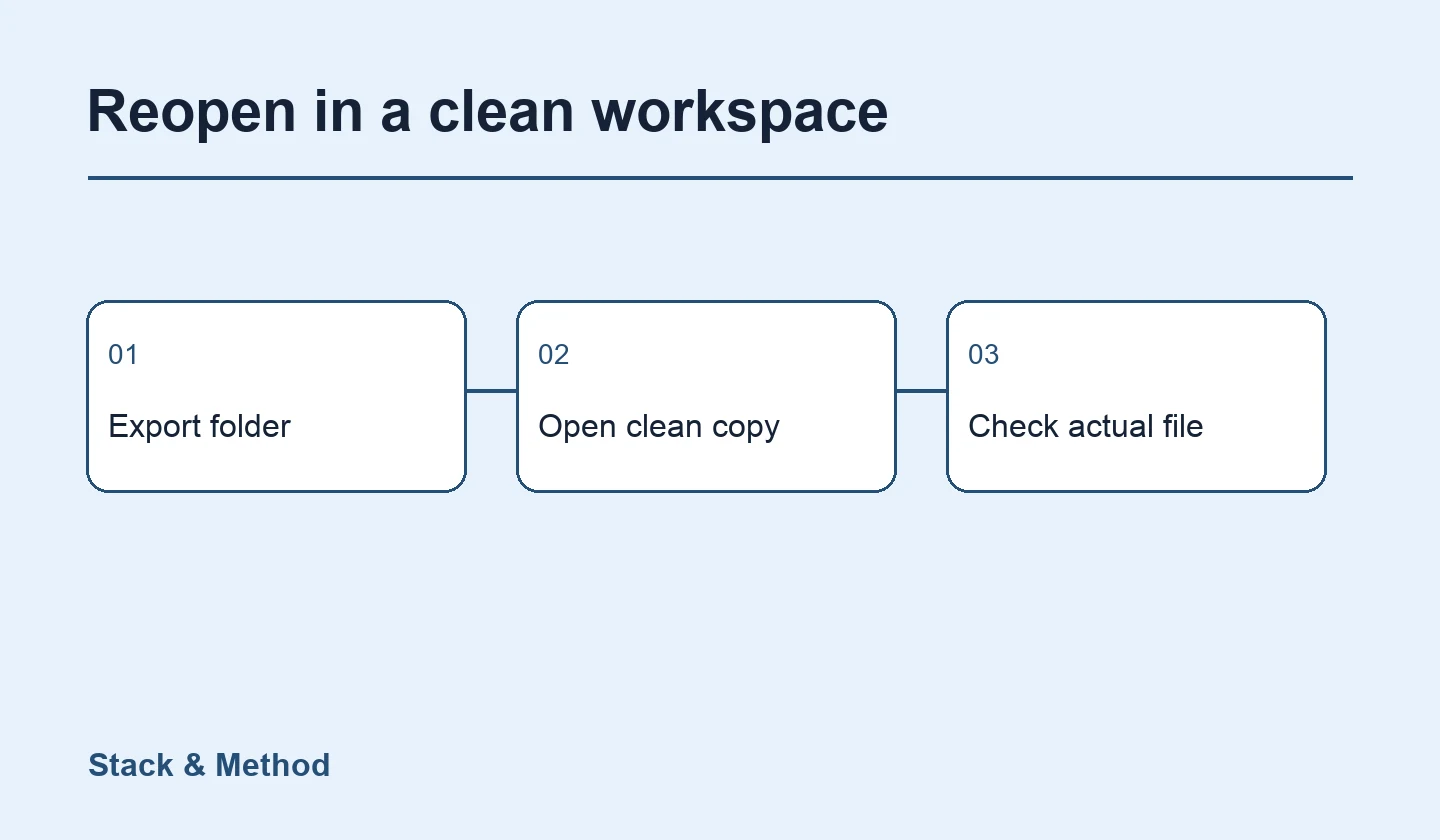
Copy the exported folder outside the original workspace or open it in an empty destination profile. Keep the real library untouched. If the scratch image is available only because the old app is still serving a local path or the original sharing link is in memory, a normal preview can look successful. Open the extracted image itself and inspect its filename and visible contents. For critical files, compare checksums of the original and exported copies. A mismatch shows the bytes changed. A thumbnail or a resized copy may still be fine for browsing, depending on the use of the file.
In the destination, follow the note link and look for the known phrase. Display the inline image and open the corresponding file from the exported directory. If the note uses an app-specific link form, document whether the destination understands it or the exporter translated it. A relative Markdown link can reference the correct target even if the original app used a different form internally.
| Check | Expected | What a failure tells you |
|---|---|---|
| Note link | Projects/Follow-up.md opens | The link path or destination title may have changed. |
| Inline image | Blue square appears offline | An image reference may still depend on the old app. |
| Actual image file | Media/blue-square.png opens | A visible preview may be a cached copy. |
Sources: Obsidian · CommonMark
Use the failed row to choose a repair
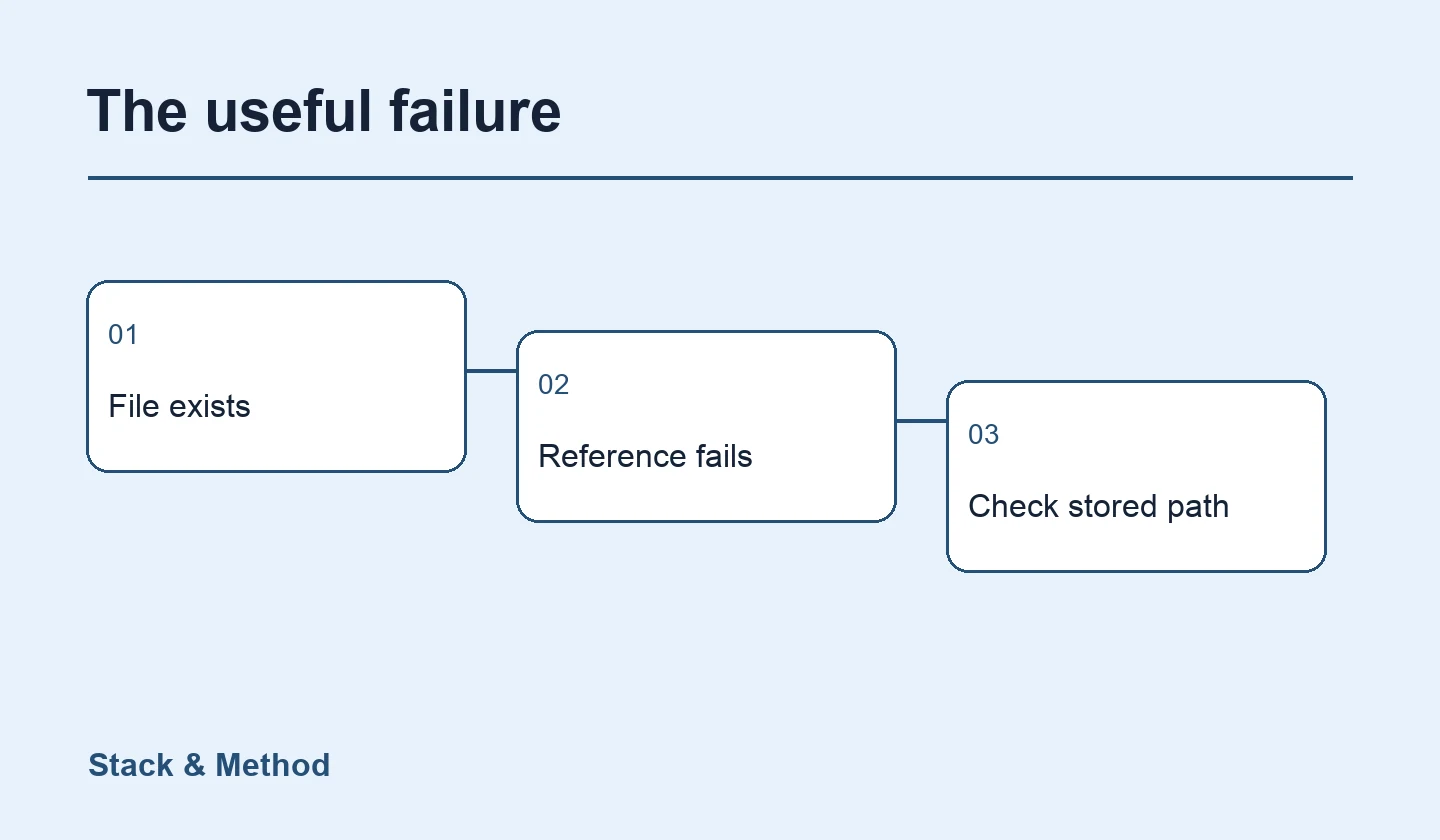
When the image file is present but the inline preview is missing, compare the stored path with the folder and filename on disk. A renamed folder, a space, character encoding or case differences can explain the failure. Fix the export setting or the link conversion on the fixture first. When the notes open but the image file is absent, look for an attachment export option or take a separate file backup. Then repeat the entire round trip to check that the repair covers both the displayed preview and the saved file.
If a same-name note opens the wrong target, keep folders through the export or disambiguate the file names before attempting a bulk migration. Record the expected and actual target, including its folder. Importing the full library before checking that case can make a broken reference hard to distinguish from a legitimate duplicate.
Give each test attachment a unique filename. Keep the source files together, export one known note and copy the result to a separate folder. If you get a ZIP archive, open it there and compare the inventory against your expected list. A document can have an unchanged label while it is only a preview or an empty link. Open the actual file and note which content you can still use.
Before you finish
- Use an empty destination profile.
- Follow the note link to its exact target.
- Open the attachment independently of the note.
- Record what did and did not travel.
Apply the same expected-versus-actual approach to a webhook. Test another handoff with a controlled fixture.
Sources: Obsidian · CommonMark
Frequently asked questions
Can I test with only one Markdown file?
Include a second note and an attachment. One plain-text file will not exercise the folder, link and asset behavior you need to check.
What if the export renamed my folders?
Compare the new paths and open each reference. Renaming can work if the exporter also rewrites every affected link.
Can I use live customer notes as my first test?
Use a small invented note and a harmless file you own. You can repeat it without granting new access or exposing live data.
Should I record the exact app version and format?
Yes. Export behavior can vary by version and by output choice. Keep those fields alongside the input and result.
Stack & MethodCheck response headers for a hosted attachment
Export one dummy note with an embedded file and a linked file, then open the result independently.
Check response headers for a hosted attachmentContinue with these guides
- Check response headers for a hosted attachment
Identify delivery and content-type issues when an attachment is meant to remain a remote URL.
- Test another handoff with a controlled fixture
Apply the same expected-versus-actual approach to a webhook.
- Browse practical tool workflows
Export one dummy note with an embedded file and a linked file, then open the result independently.
References
- Attachments Obsidian
- CommonMark specification CommonMark