
The journal
Cron Every Five Minutes: Read the Clock Before Running the Job
See what */5 means in cron and verify clock matches, queue delays and overlapping task runs across an hour boundary.

 Stack & Method
At a glance
With a five-field schedule, */5 in the minute field gives 00, 05, 10 and so on. Predict the times from the clock, then check actual starts in the runner.
In this guide
In the minute field of five-field cron, */5 matches minutes 00, 05, 10 and every fifth minute through 55, then starts over at 00 in the next hour. A match is a scheduled opportunity to run. It tells you nothing about the previous run’s completion time. If a task must wait five minutes after it finishes, put the delay in the workflow or use a scheduler that supports a completion-based delay.
Read the position before reading the number
Keep the slash and number together as */5. Spaces separate the fields, so typing a space after the slash changes how the expression is read. In */5 * * * *, only the minute field is stepped. The other fields allow every hour, day, month and weekday. Here the candidate minutes start from zero, even if you create the schedule midway through the hour.
Check your scheduler’s format when you copy an example. A format with a leading seconds field shifts the positions. A user crontab with five scheduling fields must also have the command afterward, whereas a managed scheduler can put the task in a separate field. Count the time fields based on the tool’s own syntax, then verify that the stepped field is minutes.
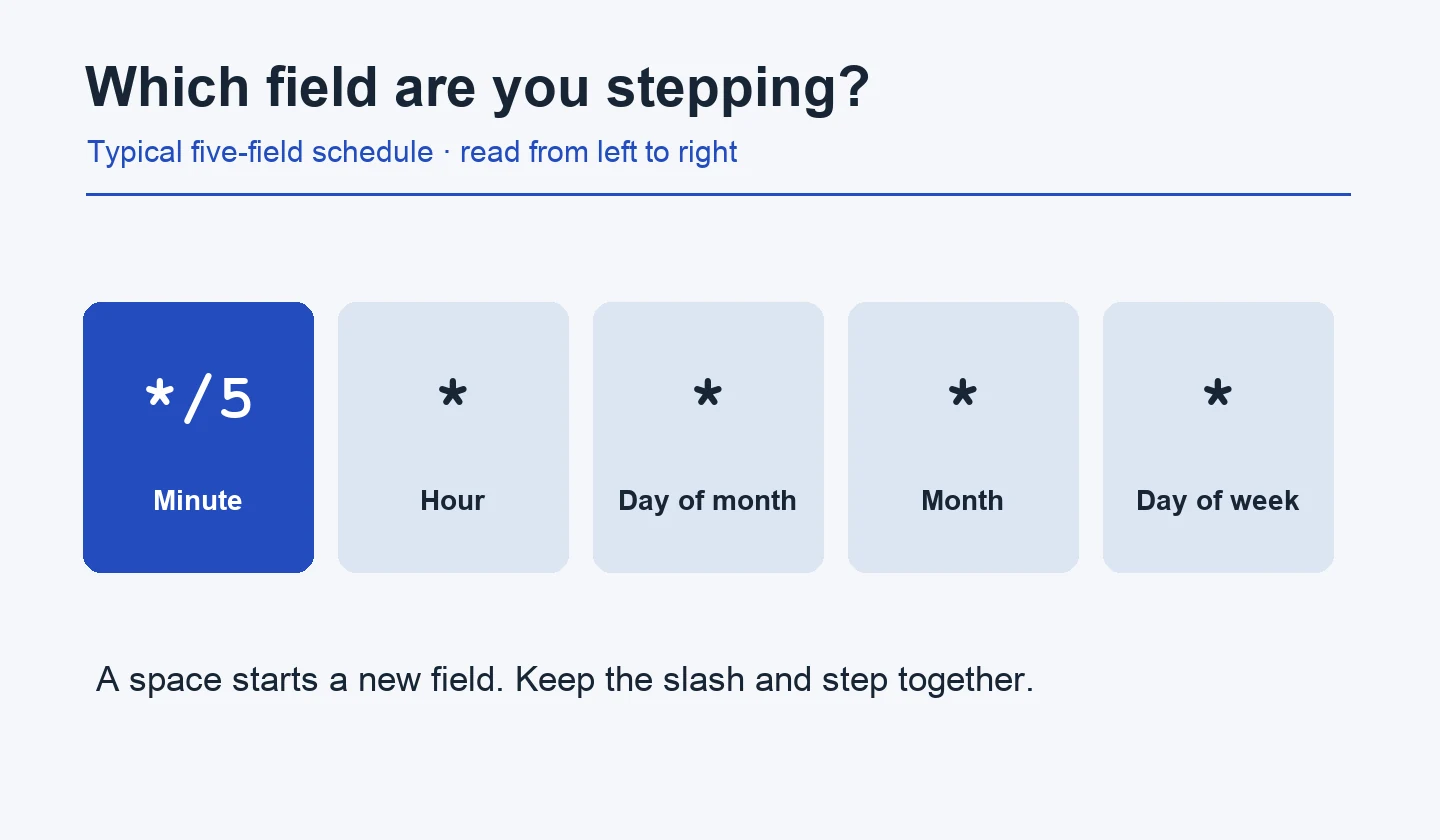
Map the fields to your particular scheduler. Check which cron fields you have.
Sources: Cronie maintainers · GitHub Docs
Work across the hour boundary
Imagine you save */5 * * * * at 14:52 on an ordinary day. The next matching clock times are 14:55, 15:00 and 15:05. None of these matches are calculated from 14:52. Under a scheduler with no delay, scheduling from the time you saved would instead put the first match at 14:57.
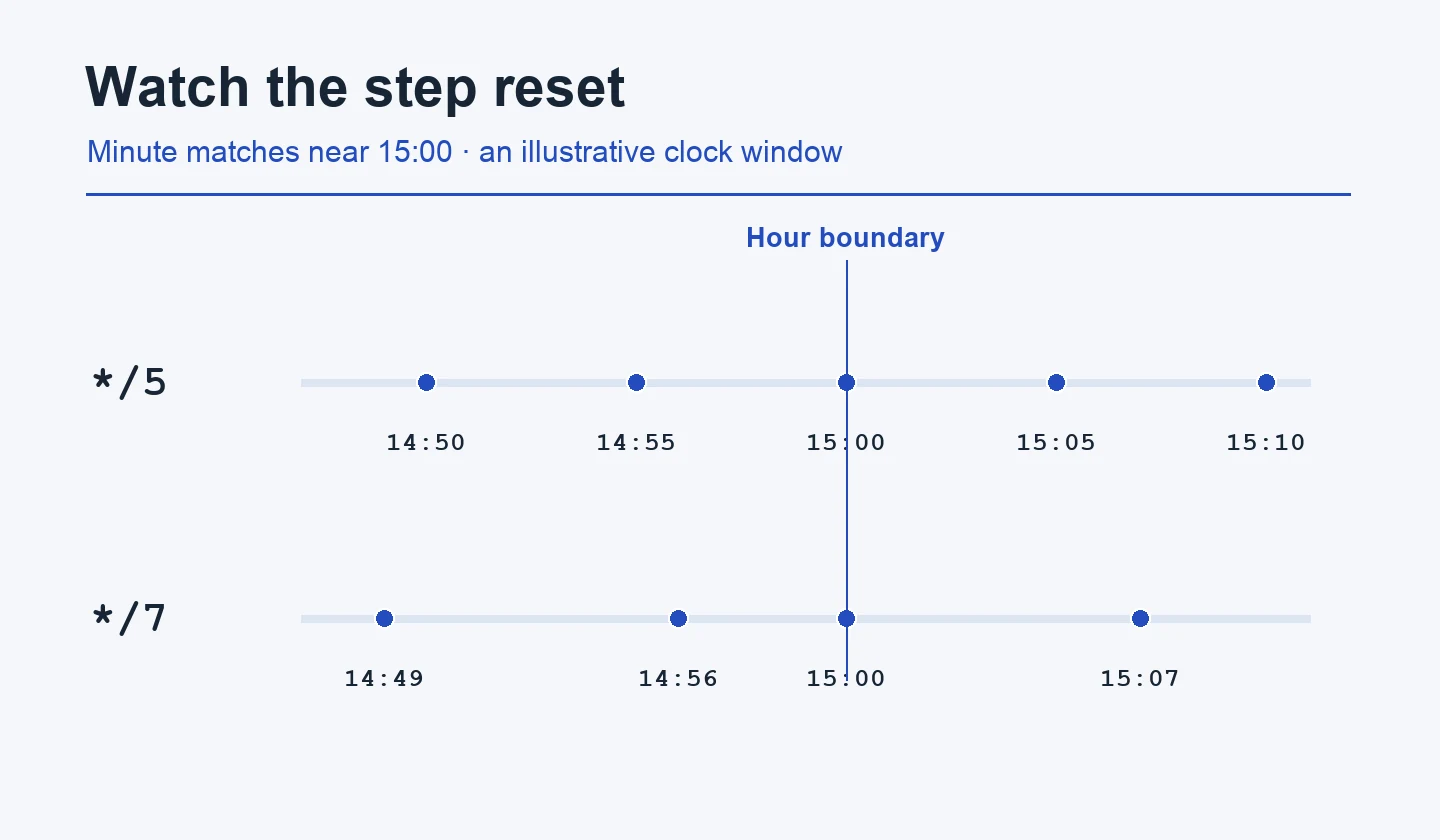
The field reset is easier to see with seven. In the minute field, */7 gives 14:49, 14:56 and 15:00 near that same hour boundary. It keeps the minutes 0, 7, 14 and so on up to 56 in each hour. That last gap is four minutes. For a five-minute cadence starting two minutes past the hour, a Cronie-style range such as 2-59/5 * * * * matches 02 through 57, in steps of five. Read the managed provider’s syntax before using the range form there.
| Minute field | Next candidate times | What changes |
|---|---|---|
| */5 | 14:55, 15:00, 15:05 | Starts at 00 each hour. |
| */7 | 14:56, 15:00, 15:07 | Crosses the hour in four minutes. |
| 2-59/5 | 14:52 excluded if saved after that tick, then 14:57, 15:02, 15:07 | Starts stepping from minute 02. |
Sources: Cronie maintainers
Read actual starts separately from expected matches
Write two columns in a scratch note. The first shows the expected wall-clock matches. The second shows when a harmless test job actually starts, including the time zone. Log a finish timestamp as well if the reason for the schedule is to avoid overlap. Test across an hour boundary and use the runner’s history, not the time when you notice a notification. This keeps “scheduled for 15:00” distinct from “the runner started at 15:02.”
As one managed example, GitHub Actions documents that scheduled workflows can be delayed or dropped under load. It uses UTC by default and documents a time zone option. Cronie has its own local-time rules, including how daylight-saving changes affect matches. Write down the executor and zone in the note before diagnosing an hour offset.

Check the provider’s warning about delayed and dropped events. GitHub Actions schedule behavior.
Sources: GitHub Docs · Cronie maintainers
Decide what happens if a run is still active
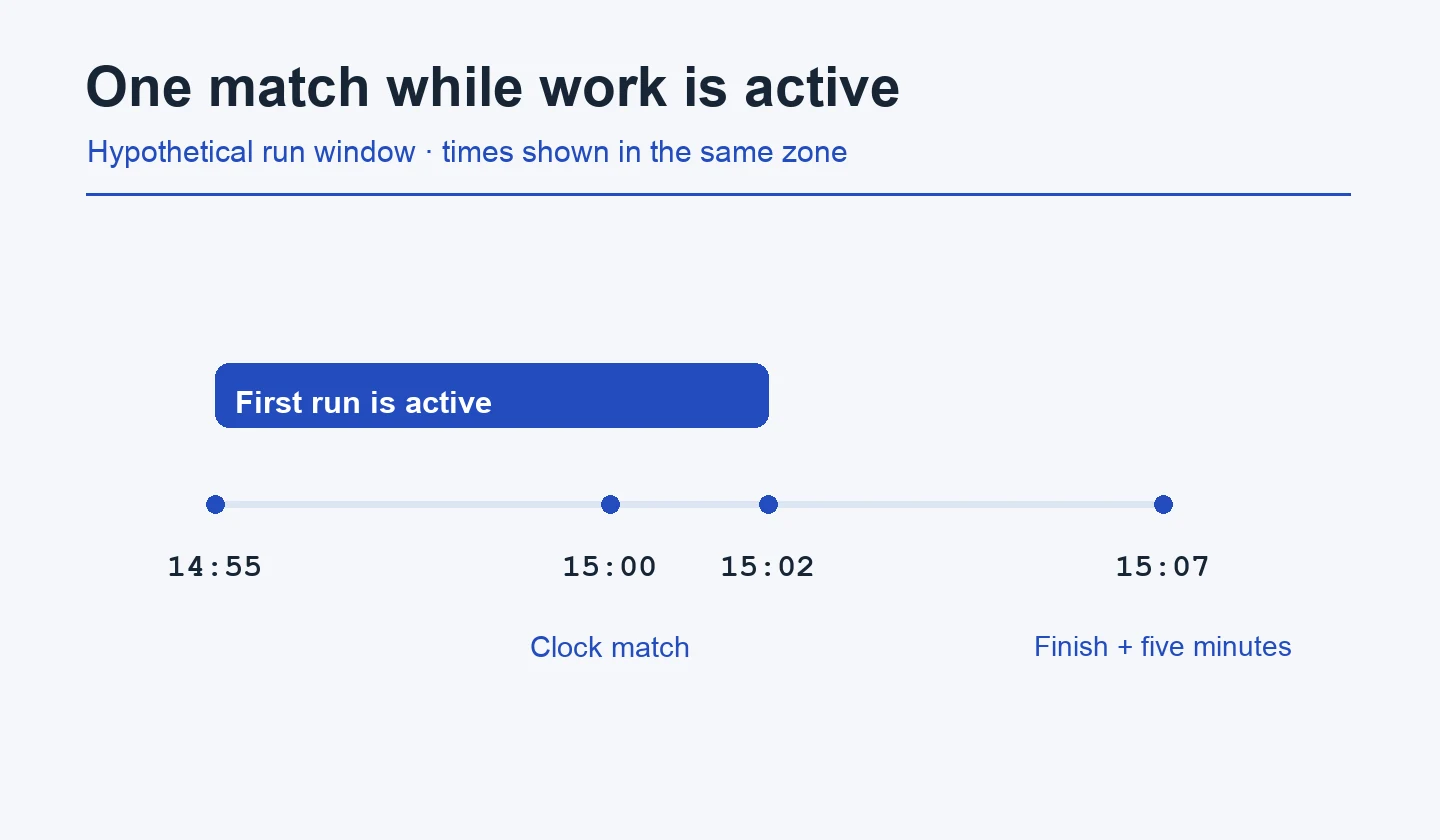
Suppose a task starts at 14:55 and finishes at 15:02. The 15:00 match happens while that task is active. Whether the new attempt starts, waits or is skipped depends on how the runner is configured. Cron’s minute step alone gives you no protection. Check the chosen behavior with an isolated no-op that takes longer than the interval before applying the schedule to a job with side effects.
If the actual requirement is to check for work at named clock times, a cron expression is a good fit. Decide how busy windows are handled and log the outcome. If each task needs five quiet minutes after the preceding one ends, include a completion-based delay in the scheduling logic. In the example the earliest start after that delay would be 15:07. Make the next automation step depend on the recorded finish instead of assuming the interval behaves that way.
Choose the timing your task needs
Clock-based checks
Attempt work at named minute marks. Decide what to do when an earlier run is still active.
Delay after completion
Record the finish and count the delay from that timestamp. In the example, finish at 15:02 and wait until 15:07.
Separate repeat protection from the choice of when to start. Make repeated calls safe.
Sources: Cronie maintainers · GitHub Docs
For a job that runs at two named hours each day, check the 12-hour example in the scheduler’s actual time zone before comparing wall-clock times with elapsed time.
Keep the two-line schedule proof
For one test, record the expected matches and actual starts beside each other. Mark any late, skipped or overlapping starts in that window. A discrepancy then gives you something specific to check: the expression, time zone, queue or overlap rule. Once you know what a blocked slot looks like, you can tell a genuine miss from a task that was supposed to wait.
Verify the next three runs
- Confirm which field is minutes.
- Write the expected times and time zone.
- Log actual starts and finishes for a harmless test.
- Test what happens when a later match lands during an active run.
Sources: GitHub Docs
Frequently asked questions
Does an hour field with */5 match every five minutes?
That steps through hours in the hour field. To step minutes in a five-field schedule, put the value in the first field.
Can I put spaces around the slash?
Keep the range or asterisk, slash and step together. Spaces separate the fields.
Why do several events show later than the chosen minute?
Check the runner’s queue and time zone. Compare expected match time, actual start and finish from the same log system.
Is this an automatic retry rule?
A later match offers another scheduled start. Retry and overlap behavior belong to the runner or job logic.
Stack & MethodCheck which cron fields you have
Map the fields to your particular scheduler.
Identify your cron fieldsTest the rest of the workflow
- Check which cron fields you have
Map the fields to your particular scheduler.
- Make repeated calls safe
Separate repeat protection from the choice of when to start.
- Plan workflow error handling
Keep failure handling separate from the cadence setting.
References
- crontab(5) manual: time fields and step values Cronie maintainers
- Events that trigger workflows: schedule GitHub Docs