
The journal
Can I share my Google Password Manager with my team? Practical guidance for small teams
password manager teams sharing explained. Practical guidance on limits, risks and safer alternatives for small teams using Google Password Manager.
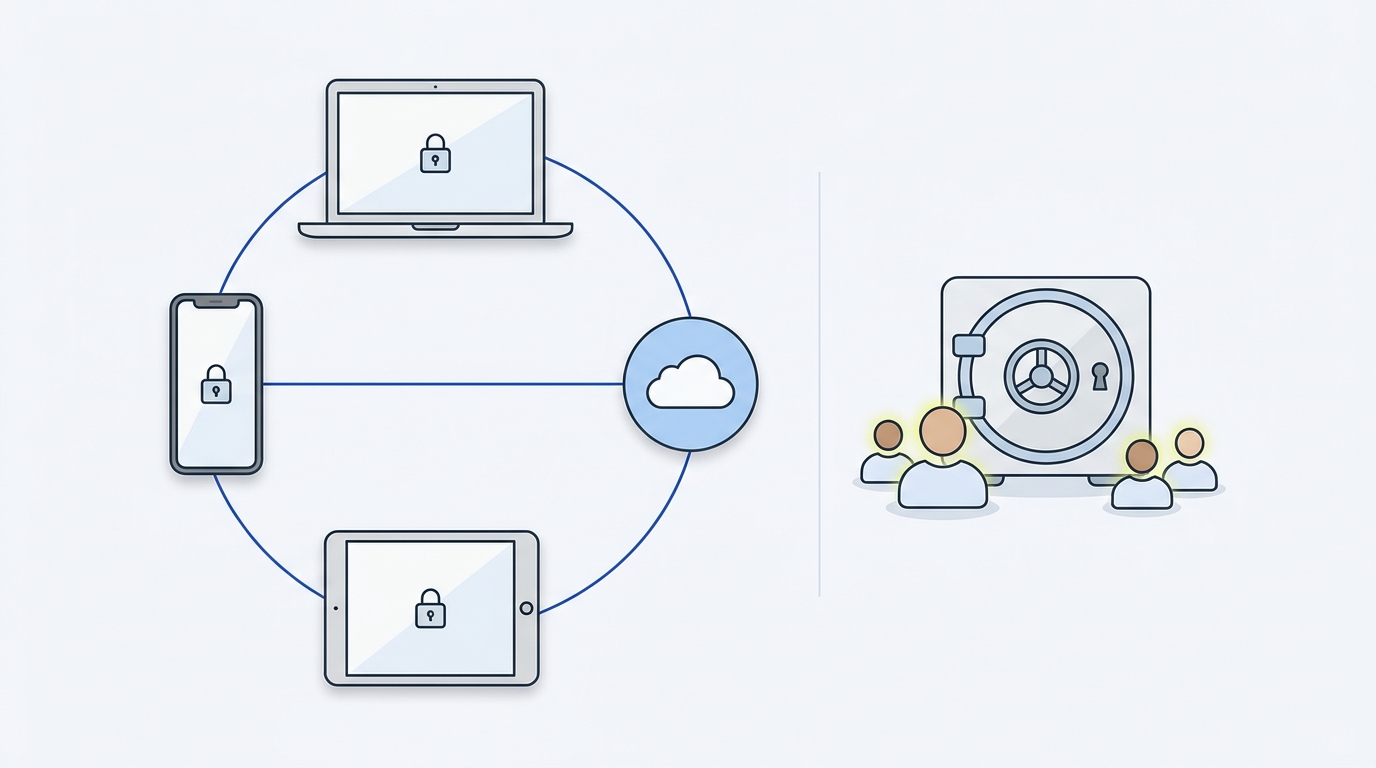
Quick answer: Can I use Google Password Manager for password manager teams sharing?
Short summary answer
Short answer: Google Password Manager is built around individual Google Accounts and is not designed as a dedicated team vault, so it is usually not the best long-term solution for password manager teams sharing. If your need is occasional, ad hoc access for a very small group, you can use workarounds, but these trade convenience for weaker auditability and control.
This guide focuses on practical trade-offs, security considerations and immediate steps you can take. If you need role-based access, audit logs or predictable rotation, plan to move to a solution that supports shared team vaults and access controls.
Who should read this first
This article is for small teams, founders and operations leads who manage credentials for 3 to 50 people and must decide whether to rely on a personal-password approach or adopt team-grade tooling. If your main question is whether a single person can hand over a password in a pinch, this article will cover safe short-term mitigations. If you need long-term, auditable sharing, skip to the sections on secure alternatives and the decision checklist.
How Google Password Manager works and the practical limits for team sharing
What it stores and how entries are tied to a Google Account
Google Password Manager stores credentials linked to a Google Account and syncs them to devices where that account is signed in. That means each saved credential is associated with a specific user identity rather than a shared team object. The implication for teams is direct: access control is per account, not per role or shared project.
Because entries live in an individual account's storage and sync model, sharing a credential usually requires giving another person access to that account data in some form. That creates limits around accountability and makes it difficult to separate who used which credential and when.
Can I use Google Password Manager for password manager teams sharing?
Not as a long-term, auditable team solution. It can be used for short-term or occasional sharing with mitigations, but teams that need role-based access, rotation and logs should use a dedicated team vault and run a small pilot first.
Common technical limits that affect sharing (no dedicated shared vault, per-account access control, 2FA and sync)
There is no built-in, dedicated shared vault with role-based permissions in the per-account sync model. Two-factor authentication remains tied to each Google Account, which helps protect login to the account but does not provide team-level controls for individual credentials. In practical terms, when teams try to share, they encounter three recurring constraints: lack of granular access roles, trouble rotating shared secrets safely, and limited or no built-in audit logs mapped to team roles. (See a community thread on Google account sharing for related issues: Google Support.)
Those constraints affect common team operations: onboarding an employee without exposing other credentials, revoking access quickly after offboarding, and proving who accessed a service during an incident. For teams with compliance or audit needs, these operational gaps are usually decisive.
Practical ways teams currently share passwords with Google Password Manager and their risks
Common workarounds teams use (account sharing, password export/import, manual copy)
Teams who attempt password manager teams sharing with a consumer-focused, account-bound tool typically use one of a few ad hoc workarounds. The first is account sharing, where a dedicated Google Account is created and multiple people sign in to access the saved credentials. The second is export and transfer, where passwords are exported to a file and then moved to another person or stored in a shared document. The third is manual copy and paste into a team note or chat tool for occasional needs.
Each of these methods achieves access, but they do so by weakening the controls you get from a purpose-built team tool. The convenience of quick sharing must be balanced against the loss of visibility and the increased surface for accidental exposure.
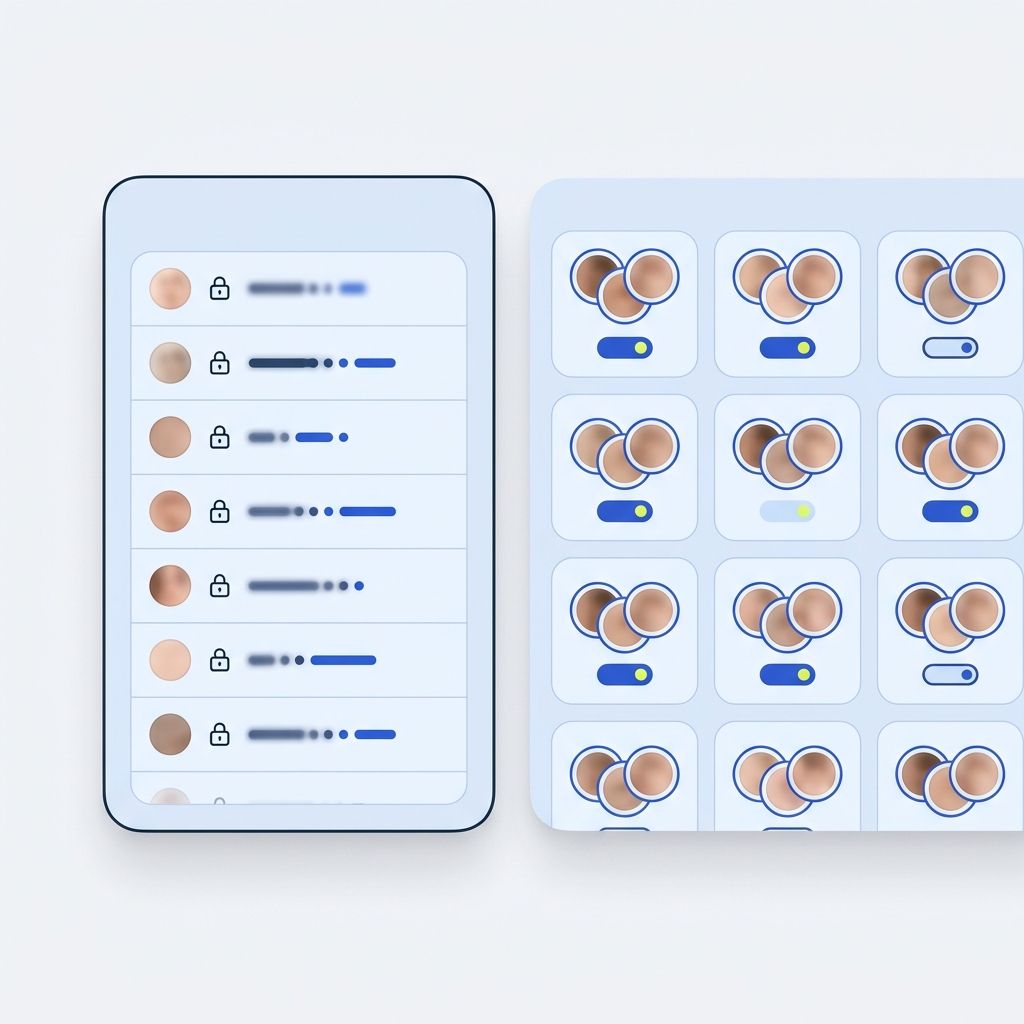
Account sharing removes per-user accountability because many people operate under the same account identity. That means actions taken with shared credentials are hard to trace back to an individual, which is a clear problem for incident response and compliance. The safer short-term mitigation here is to limit who uses the shared account and to insist on strong 2FA on the account itself.
Security and compliance risks of each workaround
Exporting credentials to CSV or similar files exposes secrets during transit and storage. Files can be copied, backed up by other systems, or intercepted if not handled carefully. When teams use export/import methods, they should treat the intermediate file as highly sensitive: encrypt it, delete intermediate copies promptly, and rotate any credentials that were included after transfer.
Manual copy and paste into shared notes or chat systems is common for occasional needs, but these platforms often lack the secure storage lifecycle of a secrets manager. Messages can persist, be searchable, or be backed up to services outside your control. When using a shared note, choose a storage place with controlled access, enable archival policies if available, and rotate the secret after temporary sharing episodes.
Operational risks common to all these workarounds include difficulty with scheduled rotation, no central audit trail for who accessed a credential, and greater friction when someone leaves the team. The immediate mitigations are strong account protection, short lived credentials where possible, and an agreed process to rotate credentials after any change in team membership.
Secure alternatives: options that keep audit, control and rotation for teams
What to look for in a team-capable password solution (vaults, roles, audit logs, automation)
When evaluating a team-capable solution, prioritize features that replace the gaps caused by per-account sharing. A shared vault with role-based access control lets you grant access to sets of credentials without handing over personal account credentials. Audit logs give visibility into who accessed what and when. Secrets rotation, or hooks for automation, reduce the operational burden of changing passwords after offboarding or role changes. These features together enable a controlled shared credentials workflow that scales beyond ad hoc sharing.
For small teams, it is reasonable to start with a minimal set of features: a single shared vault for project accounts, simple role levels (owner, admin, member), and a visible audit trail for access. That balance keeps cost and friction low while giving the essential controls most teams need early on.
recommend a shared vault with role-based access pattern
Low-friction patterns for small teams without a full enterprise stack
Small teams can adopt lightweight patterns that keep security reasonable without needing a large enterprise contract. Examples include grouping shared credentials into a single project vault, using per-project service accounts instead of human passwords, and limiting the number of people who can view a sensitive secret. Another pattern is to rely on short-lived credentials or automated secrets rotation for services, so human exposure windows are brief.
A practical transition step is to migrate the highest-value shared credentials first. Move those that are critical to operations and that would cause the most disruption if leaked. Use the team vault for those credentials, enforce role assignments, and run the team through a short onboarding and offboarding checklist to validate the process before a wider migration.

When evaluating options, you can also review marketplace apps that add sharing and management features to Google Workspace, such as TeamPassword in the Workspace Marketplace (TeamPassword), or consult published comparisons of team password managers to find a match for your needs (7 Best Password Managers for Teams).
Decision criteria and a simple scoring checklist for password manager teams sharing
Criteria to weigh: risk tolerance, compliance, team size, frequency of shared secrets
To decide whether to accept an ad hoc workaround or invest in a team tool, weigh five practical criteria: security risk if a secret leaks, compliance or audit requirements, number of people who need access, frequency of shared-secret changes, and automation needs such as provisioning or rotation. Score each criterion as low, medium or high and total the profile to guide action.
For example, a small marketing team using only a few project accounts with low compliance requirements and infrequent secret changes might accept a minimal shared vault and a documented manual rotation cadence. Conversely, a team with regulatory needs, many collaborators and frequent changes should plan to adopt a dedicated team solution with automation and audit logging.
A simple scoring grid and recommended next steps
Use this simple scoring method: for each of the five criteria assign Low=1, Medium=2, High=3. Sum the score and map it to actions: 5-8 keep short-term workarounds with strict mitigations; 9-11 pilot a lightweight team vault and migrate critical secrets; 12-15 adopt a full team solution and automate rotation. Whoever owns the decision should be a person who manages credentials day to day, such as an operations lead or IT generalist, and should run a 30-minute pilot with the team to validate the workflow.
A team pilot can be brief: pick two to five shared credentials, move them to the pilot vault, assign roles, practice onboarding and offboarding for one new user, and verify audit entries. The pilot should test both technical controls and the human process for rotating a secret after a role change.
Common mistakes, implementation checklist and closing recommendations
Top mistakes teams make when sharing passwords
Teams make the same mistakes when attempting password manager teams sharing with consumer tools. Six common errors are: sharing persistent account credentials instead of per-service accounts, no routine rotation, relying on weak or single-person 2FA, unclear ownership of secrets, skipping access reviews, and storing exports or notes without encrypting or deleting intermediate copies. Each mistake increases exposure and operational friction during incidents.
One-line mitigations look like this: use service accounts where possible, schedule regular rotation, require strong multi-factor authentication, assign a clear owner for each credential group, run quarterly access reviews, and treat exported files as ephemeral—encrypt and delete after use.
A practical 7-step checklist to implement a safe process this week
1. Inventory shared credentials, noting where they are used and who currently has access.
2. Apply short-term mitigations: add 2FA on accounts used for sharing and limit sign-ins where possible.
3. Create a small pilot shared vault or a single dedicated account for the most critical credentials and limit membership.
4. Migrate two to five high-priority credentials into the pilot and test access and rotation processes.
5. Rotate the credentials that were migrated after verifying access is working.
6. Document the access rules, owner, and a review cadence for that pilot vault or shared account.
7. Assign an owner and schedule a 30-minute pilot review to validate the workflow and decide on broader rollout.
Closing recommendation: for teams that need reliable audit, role control and predictable rotation, move from ad hoc sharing to a purpose-built team vault in a phased way. Pilot a small set of credentials first, learn from the pilot, and then expand to cover the rest of your shared credentials. That approach reduces operational risk while keeping costs and friction low.

Frequently asked questions
Can I share a Google-saved password safely for a one-off task?
For a single, rare need you can share a password temporarily, but treat the transfer as high risk: use secure channels, rotate the credential afterward and limit who keeps access.
What immediate steps should I take if I must share credentials now?
Require strong two-factor authentication, restrict access to a minimal set of people, encrypt any exported files and schedule a credential rotation after the transfer.
Who should own credential sharing decisions in a small team?
An operations lead or IT generalist who manages day-to-day credentials should own the decision, run a short pilot and maintain the access review cadence.
If your team needs occasional, one-off access to a credential, use short-term mitigations and rotate the secret afterward. If you rely on shared secrets regularly, plan a small pilot with a team vault and clear ownership to reduce risk while keeping the process manageable. Keep the pilot narrow, learn from practice, and expand only when the workflow proves reliable.
References
- https://stackandmethod.com/software/
- https://stackandmethod.com/guides/business-operations/
- https://stackandmethod.com/guides/choosing-business-software/
- https://support.google.com/accounts/thread/213158434/passwords-being-shared-across-accounts?hl=en
- https://workspace.google.com/marketplace/app/teampassword/392726529717
- https://www.securden.com/blog/password-managers-for-teams.html